

The document describes the primary configuration process (encoding, bitrate, resolution, and framerate settings) for streaming using OBS Studio; Additionally, the document includes information on configuring a plugin that enables restreaming to multiple streaming platforms;
Installed OBS Studio with version no lower than 30.1
Installed restreaming plugin
CopyStake as a product can be used without involving external streaming platforms, however, restreaming to popular platforms provides an opportunity to attract new participants to the operator's website.
The main OBS Studio configuration is specifically related to streaming platforms in the below combinations. This ensures a smooth transition for the streamer to additional activities such as streaming in CopyStake.
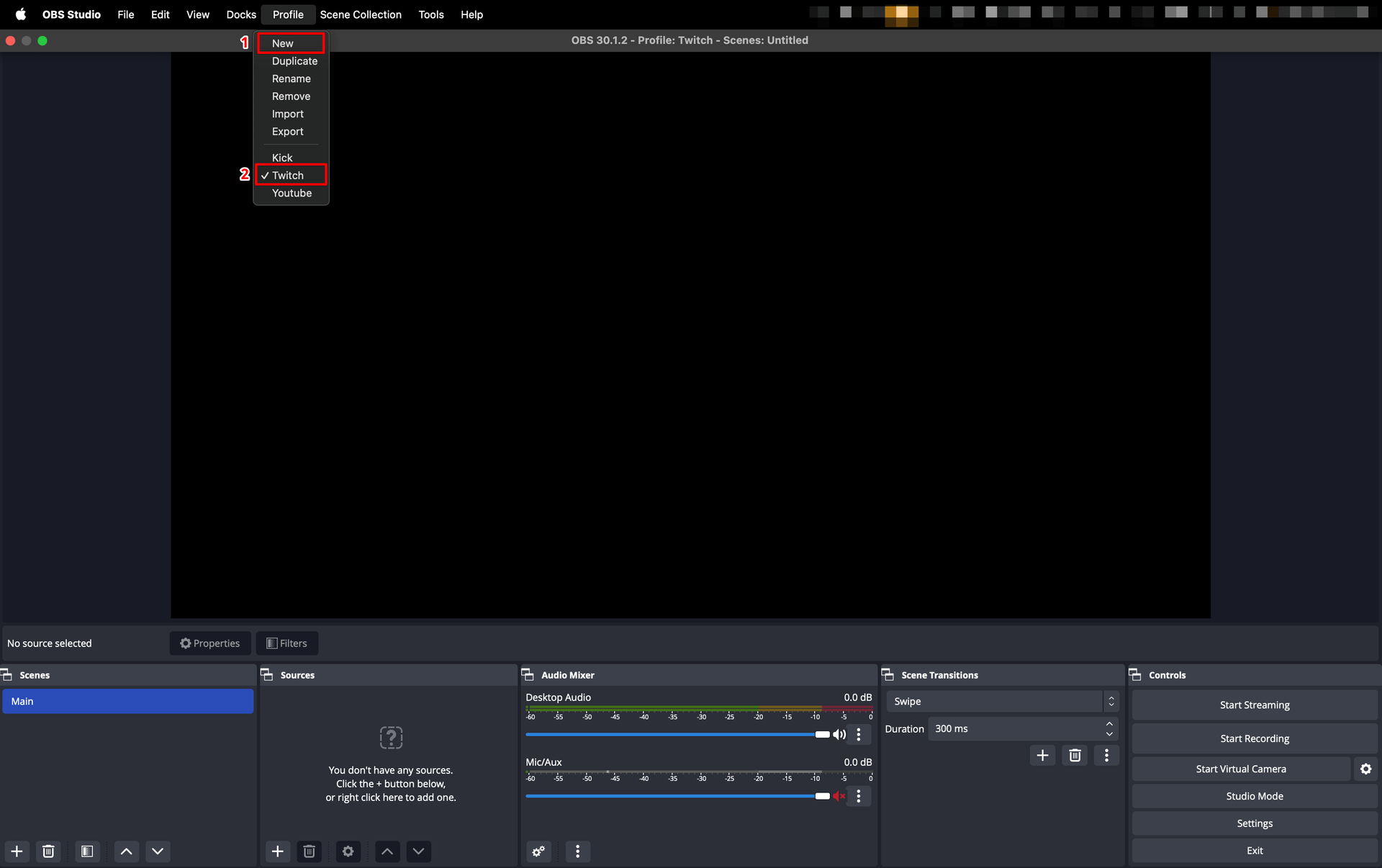
Create a new OBS Studio profile for easy switching between different streaming platforms
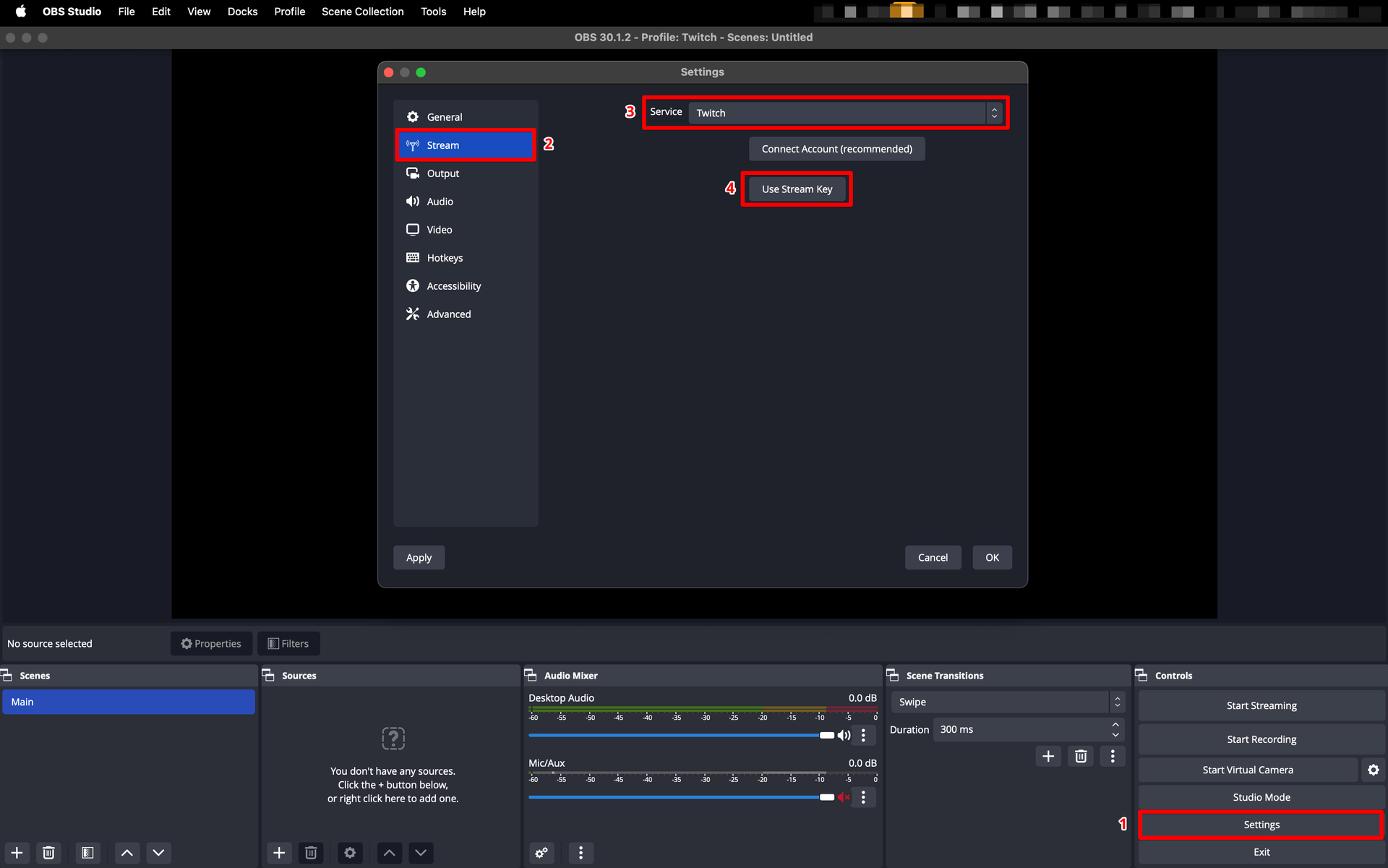
Navigate to the settings page and select the streaming service
For Twitch
For Kick

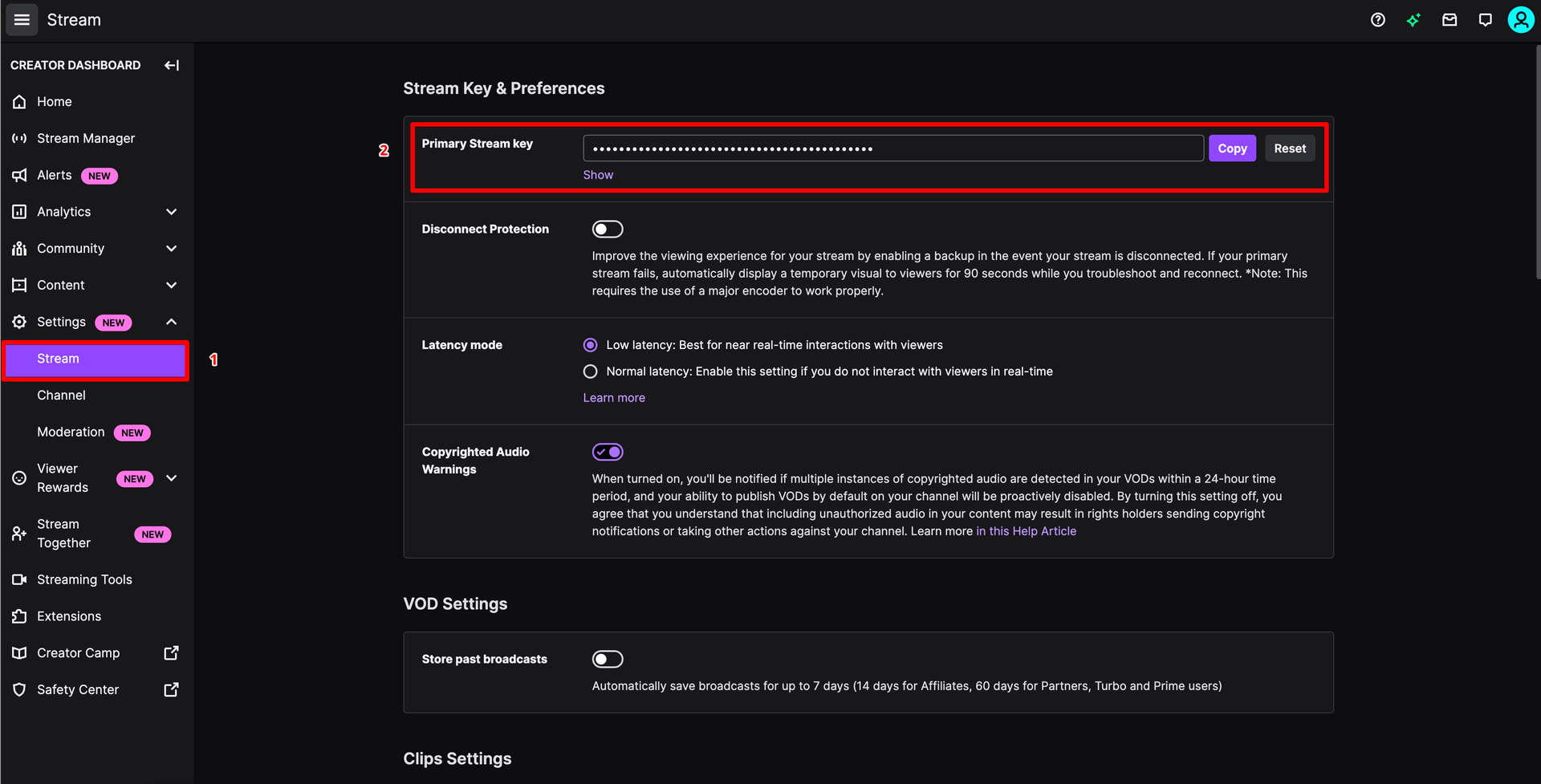
Retrieving the stream key from the Twitch platform

Retrieving the stream key from the Kick platform and set into Stream configuration (see above)

Setting the recommended Output parameters (Bitrate, Rate Control, Keyframe Interval, Preset, Profile)

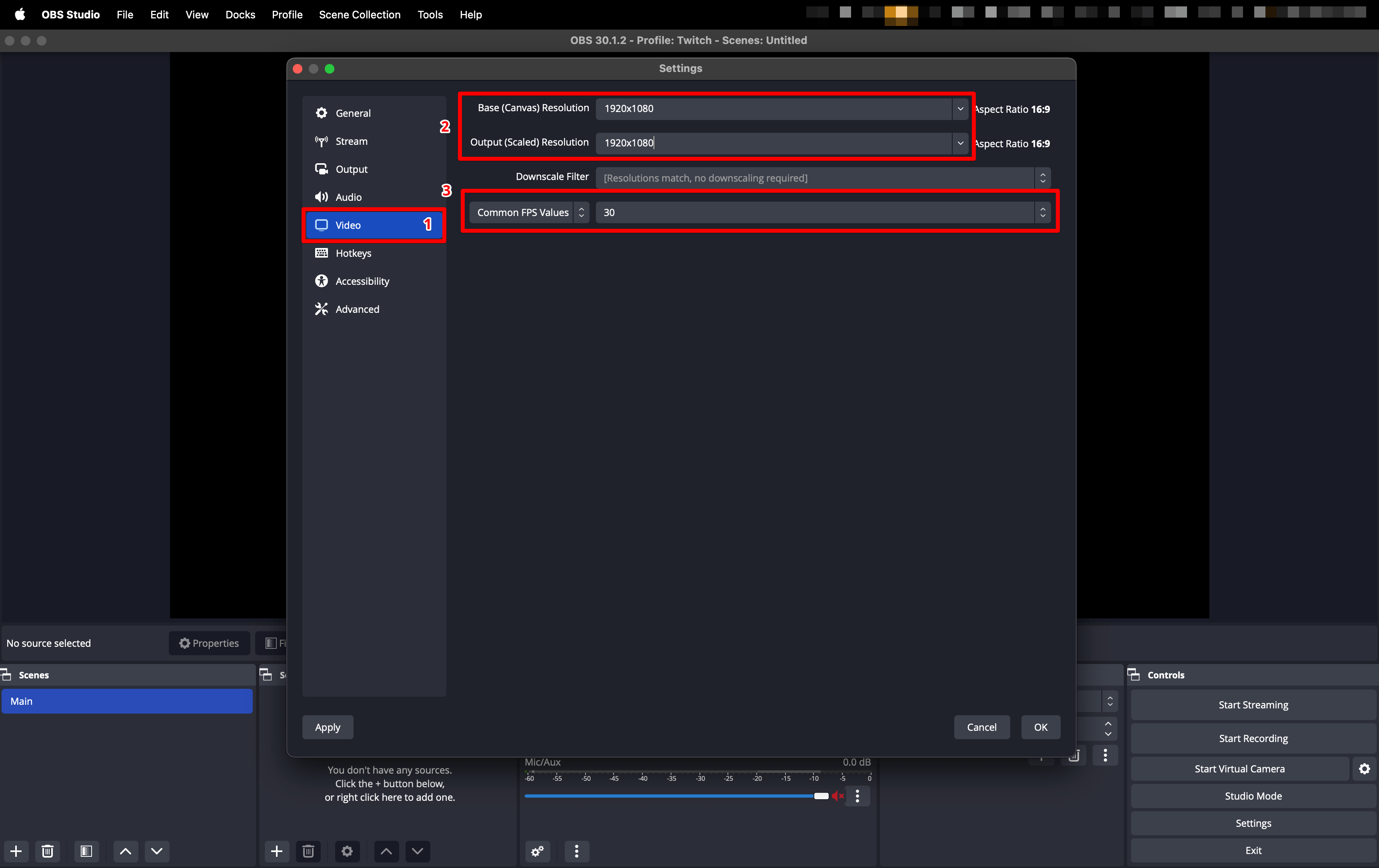
Setting the recommended Video parameters (Resolution, Framerate)
To set the video stream parameters for CopyStake, we will need to enable an OBS Multi RTMP plugin

Step 6
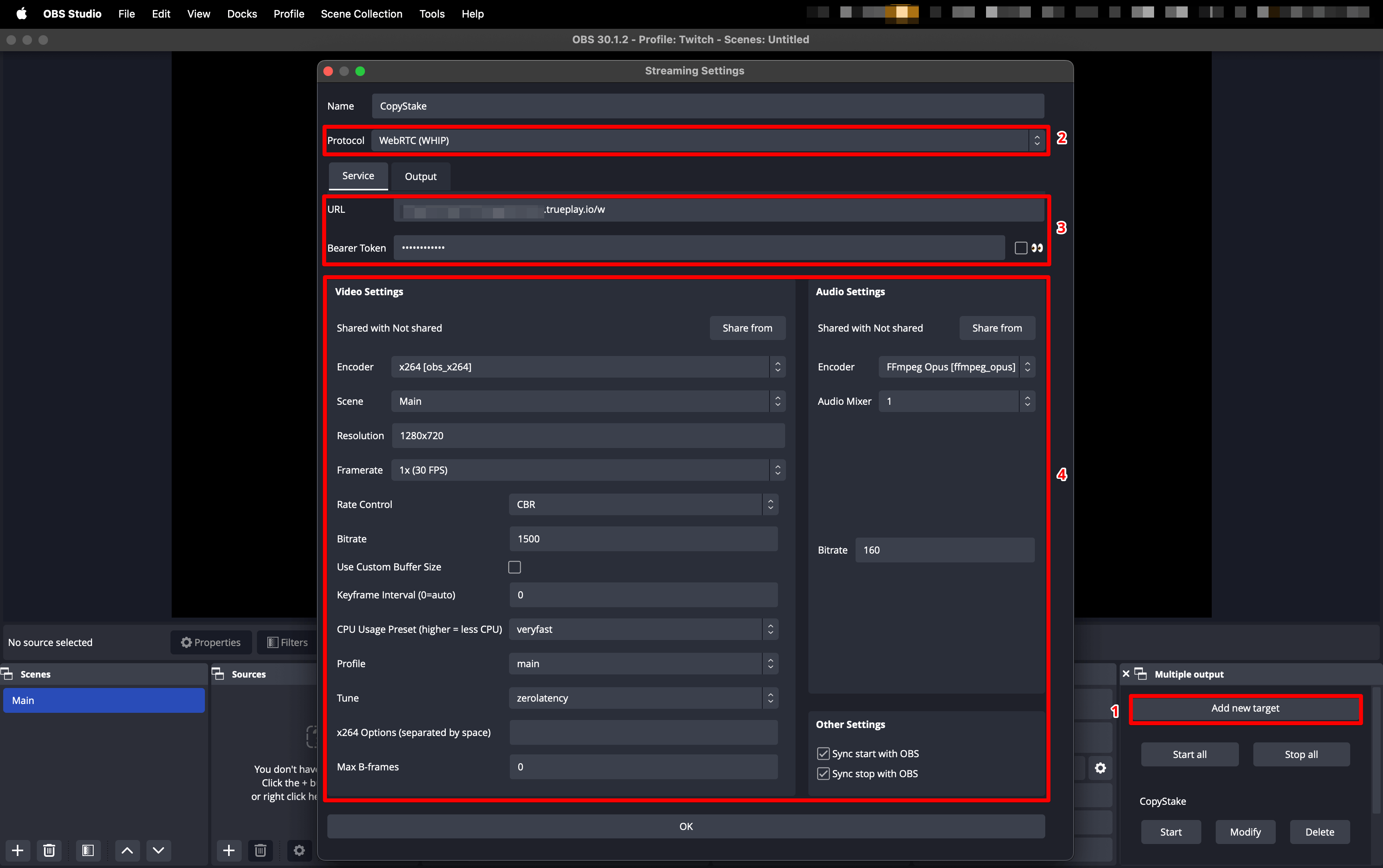
Setting the recommended CopyStake parameters in OBS Multi RTMP
Description: after starting the stream in OBS Studio, information about reconnecting is constantly displayed, alternating with frame rate information (an example is shown in the image);
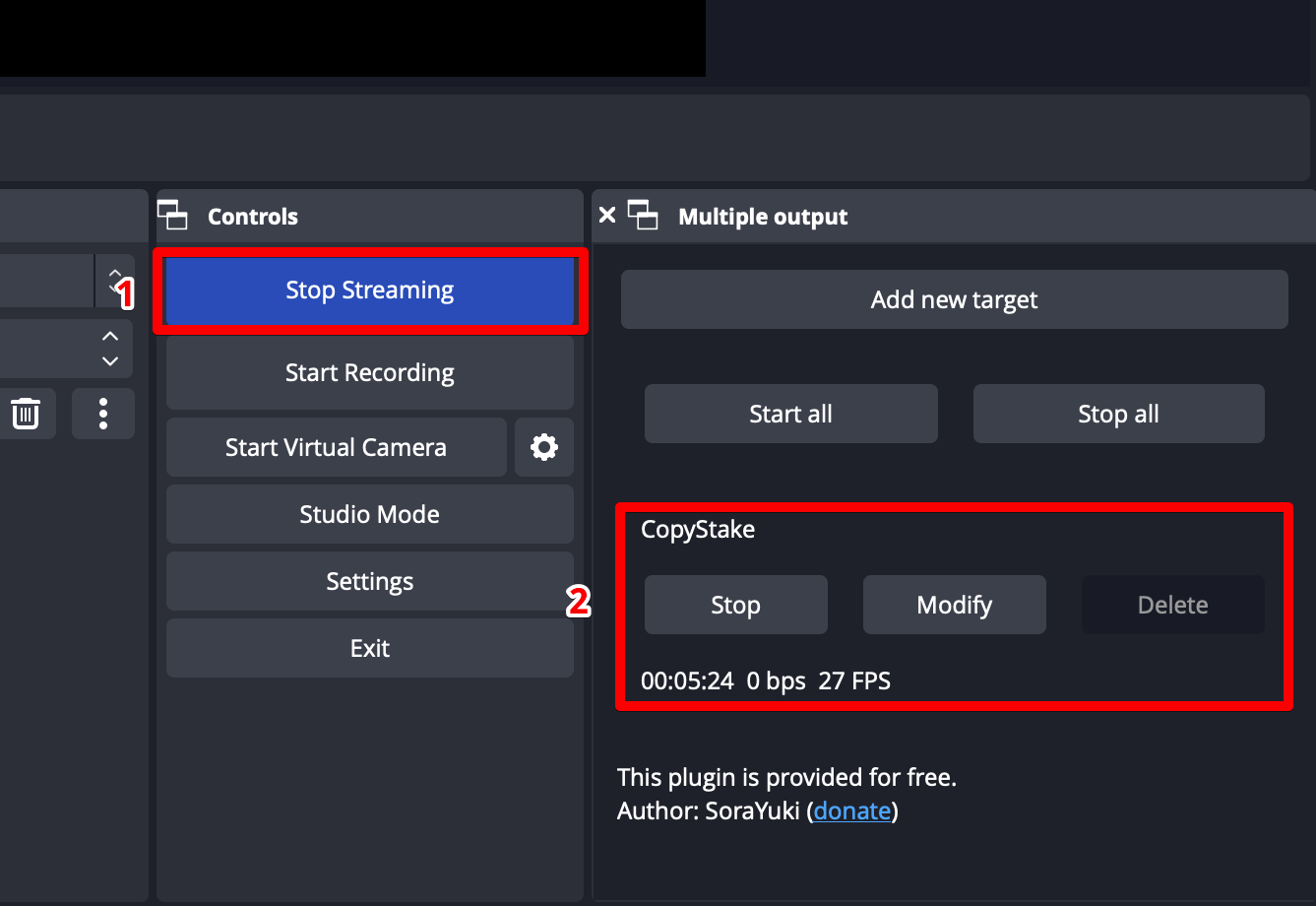
Cause: the stream is not started in the CopyStake application;

Solution: open the profile page in CopyStake and click "Start Stream".
Description: after starting the stream in OBS Studio, a connection issue is displayed;
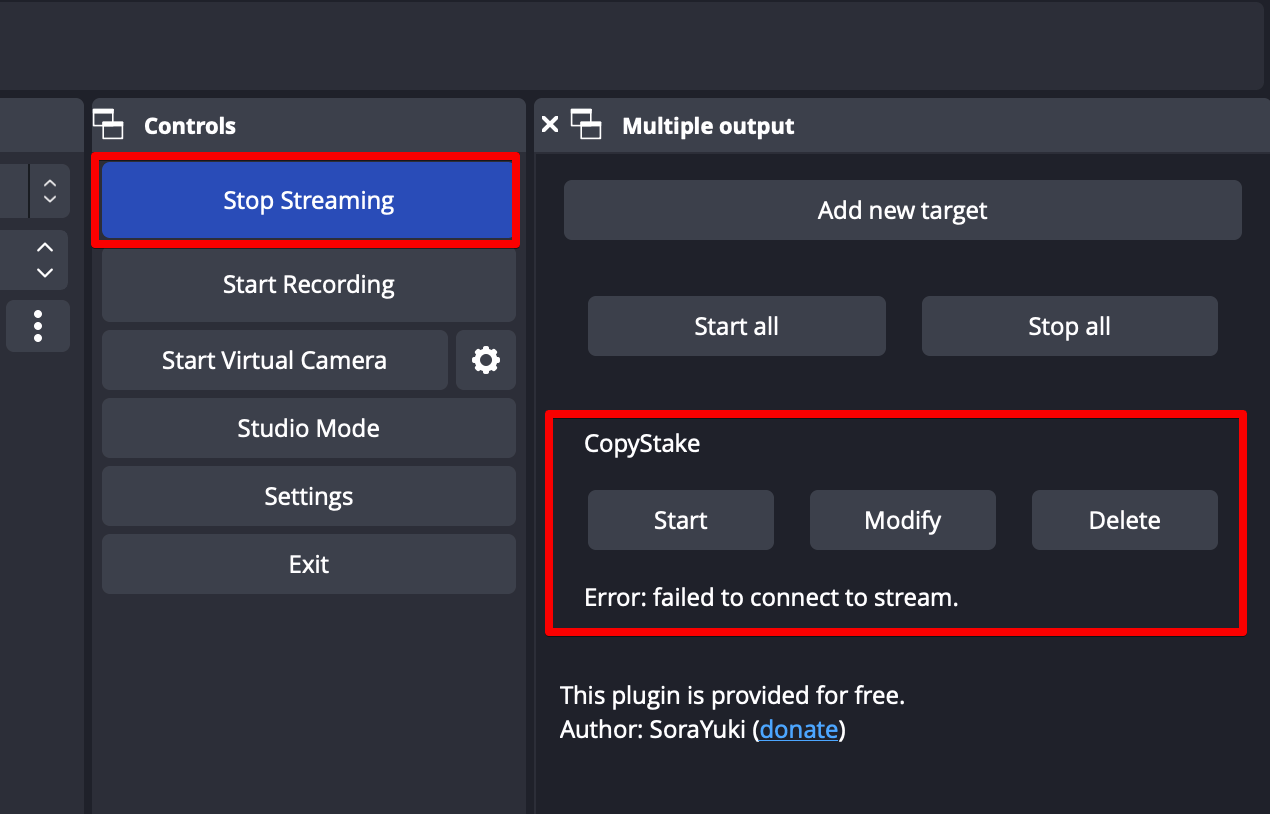
Cause: the most likely reason is an incorrect URL or Stream Key (Bearer Token);
Solution: contact the operator's support team.

.svg)