

CopyStake is a Trueplay’s live streaming feature that enables you to invite popular streamers and hold live gaming sessions right on your website. It provides players with the opportunity to automatically replicate the streamer’s bets, sharing all the wins and losses.
Additionally, collaboration with streamers can attract a larger audience to online casinos, increasing their visibility and potential customer base.
You can work with the same streamers, but now they can integrate into your platform and interact with players in a new, trending way.
You are about to elevate player engagement to new heights with livestreams! But there’s one thing we need to do before running the first stream on the platform: learn how to use the CopyStake Admin Panel.
%201.png)

Hover your mouse over the left side of the screen, and you’ll see the vertical navigation bar.
Click on the CopyStake title to open a dropdown menu with dedicated tabs. We’ll focus on the ones you’ll use most often: Streamers, Stats, Streaming Schedule, Games Whitelist and Players Blacklist, and Gamification Center.
In the Settings submenu, you can set the limit for a maximum bet in USDT. The limit will be displayed on the broadcast page. Customers with a different currency will see the equivalent of the maximum bet in their currency, calculated based on the current exchange rate.

Next, we have the Show only streamers toggle button. However, we recommend making regular players visible in the CopyStake lobby to let them copy each other’s bets, too.

The number on the left of the slash indicates how many streamers are currently live. The number following the slash represents the maximum number of streamers allowed to broadcast simultaneously based on your agreement with Trueplay.

You can also see how many people are watching CopyStake streams at the moment.
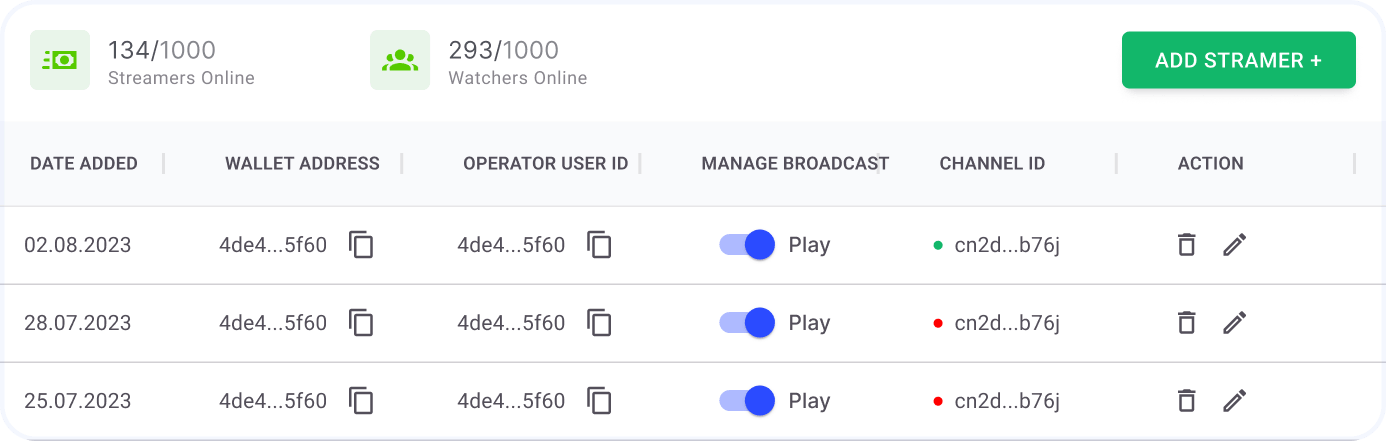
The table provides detailed information about each streamer on your platform, including the date they were added, their wallet address, user ID, nickname, and channel ID, indicating if they are currently online or offline.
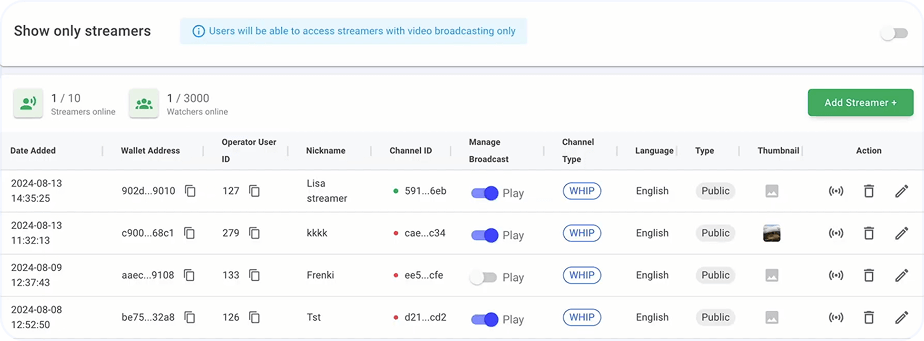
With this control, you can permit a streamer to start broadcasts or restrict them from doing so in case they break a rule.
Here, you can specify the streamer’s language.
The column shows whether the channel a streamer works at is public or private, available only for users with an access code.
We suggest you upload a cover for each streamer to make the CopyStake lobby look as attractive as possible.
By clicking on the icon, you open a window with information (a protocol, a stream URL, and a stream key) that streamers must insert into an OBS program to start going live.
.png)
Removing a streamer from the list
Deleting a streamer from the list is done by hovering over the garbage bin icon and pressing it.
Editing information and settings
You can customize the above-mentioned details and settings by clicking on the edit icon.
Please learn our OBS Studio guide to manage the stream configuration
CopyStake Stats shows your GGR for a specified period.
.png)
You can specify when a streamer will be online. This information will appear in the lobby.
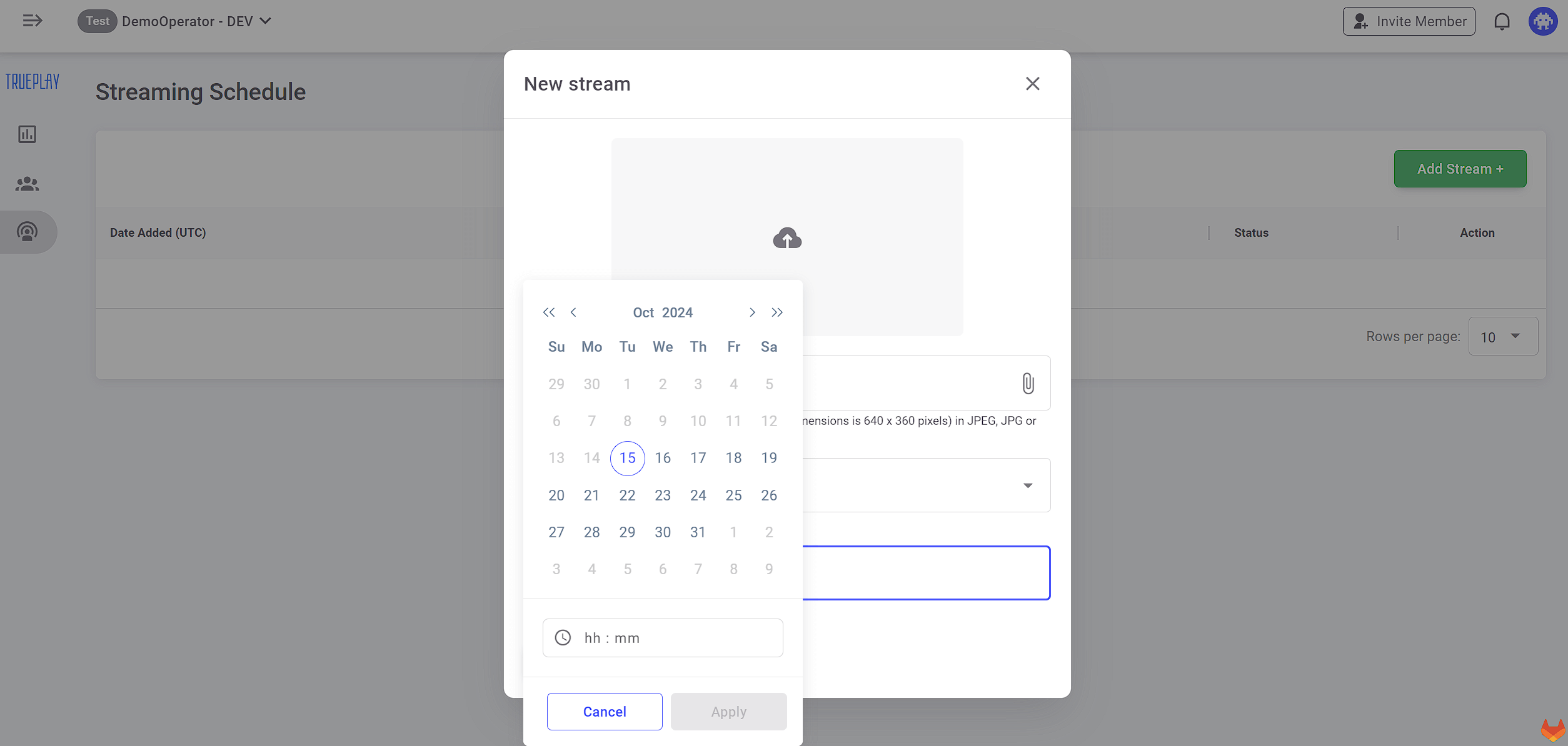
This tab is designed for managing CopyStake-supported games.
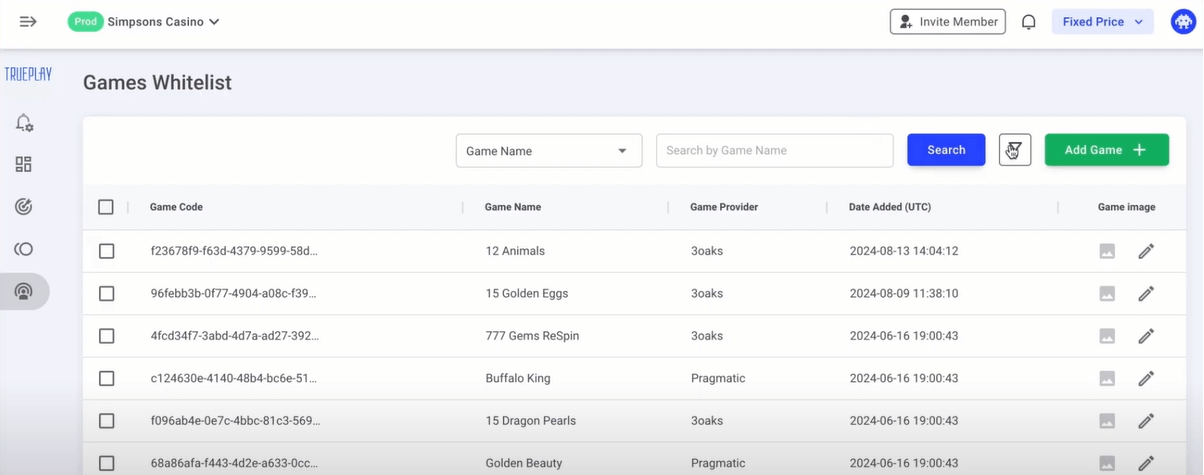
Click on the green Add Game button, enter the game’s title in the search bar, select the game, and click the blue Add 1 game button at the bottom of the active window.
Press the edit icon in the right corner of the page and upload a banner in the dedicated field in the window that appears.

To delete a game, checkmark it and hit the Remove button.

Use Players Blacklist to limit a particular user’s access to CopyStake if you spot any fraudulent activity associated with their user ID.

Now that you have a good grasp of the basics, feel free to explore the Admin Panel yourself. You’re one step closer to disrupting the iGaming space!
The Signup Reward will help you nudge unregistered users toward signing up. They will see a dedicated popup with a call to action shortly after joining a CopyStake stream.
You’ll find two toggles for managing the feature on the homepage.

Toggle this switch on to activate the Registration popup.

A registration popup will appear for unauthorized users joining the stream via the shared link will see a Registration popup. It will help get their attention and encourage them to create an account immediately, enhancing user acquisition efforts.
Unregistered users who click the Register button will either see a signup form or get redirected to a separate page — depending on your settings.
Pressing this toggle button activates the popup for unauthorized users who join the stream via the shared link.

To assign this feature to streamers, hit the Add streamers button.
A window will open with the streamer management table, a dropdown filter, and a search bar.
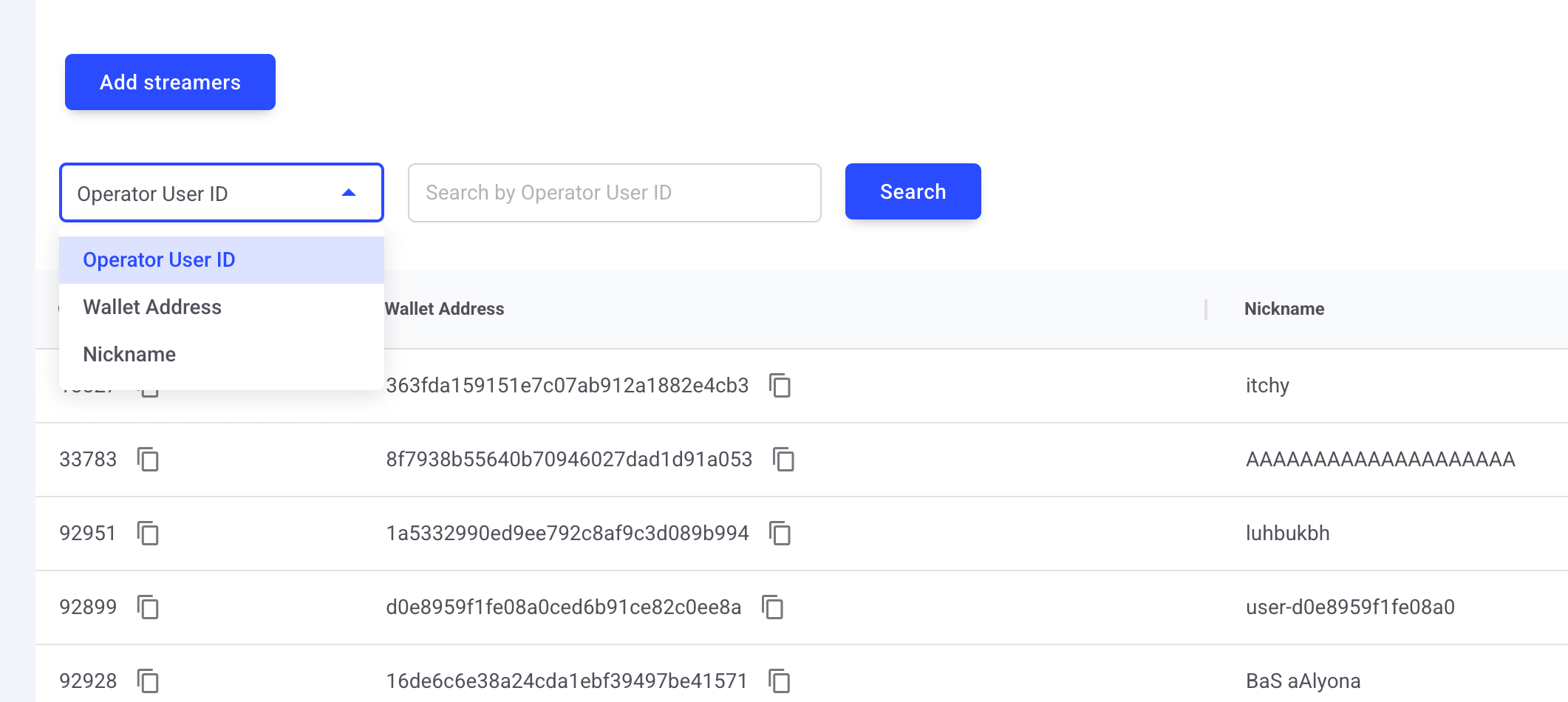
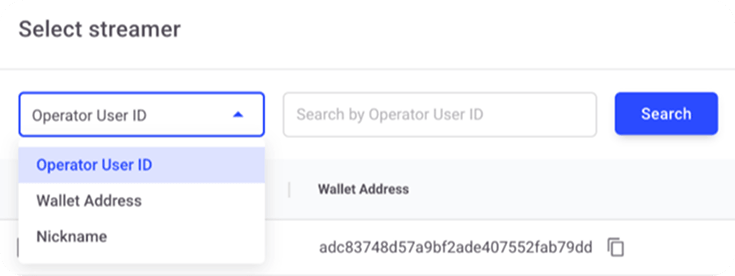
You can find a streamer by their user ID, wallet address, or nickname or checkmark them in the table.
Once you do so, press the Select button in the bottom right corner.
To turn off the feature for a specific streamer, find them in the table and remove them from the list by clicking the trash can icon.

Wheel of Fortune (WoF) allows you to host prize giveaways for players copying.
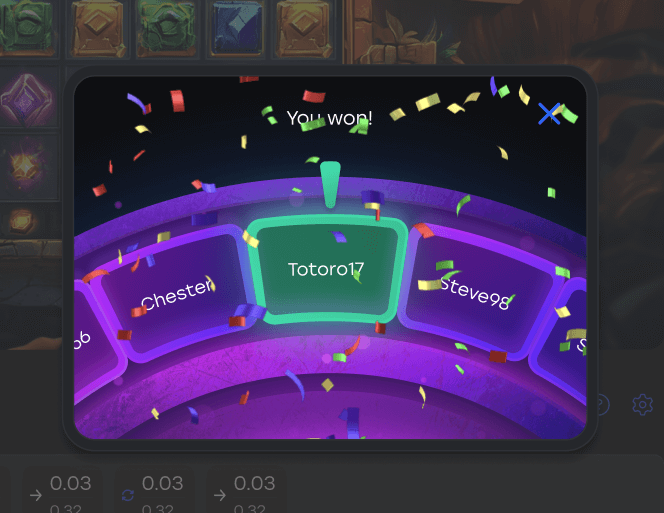
Think of this feature as level 2 engagement for CopyStake streams. You motivate users to join the draw for the chance of winning monetary prizes or promo codes that, again, can be redeemed for cash.
To activate the Wheel of Fortune, flip the toggle switch on.

Once the feature is active, you can manage WoF campaigns.
To create a campaign, click the Add Campaign button and fill in the necessary details: campaign name, duration, activation type, and the minimum number of participants.
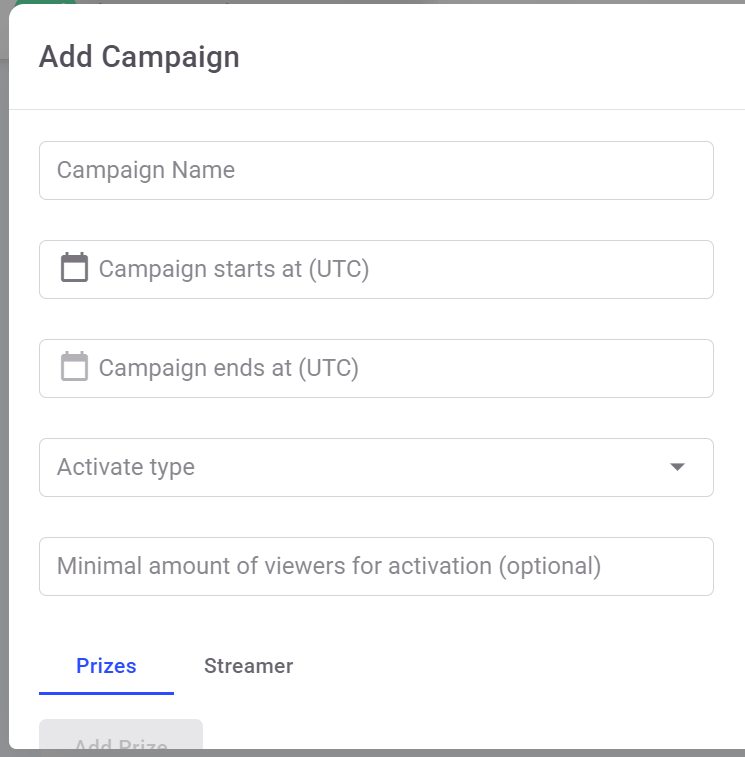
Give your campaign a clear and engaging name and enter it in the field.
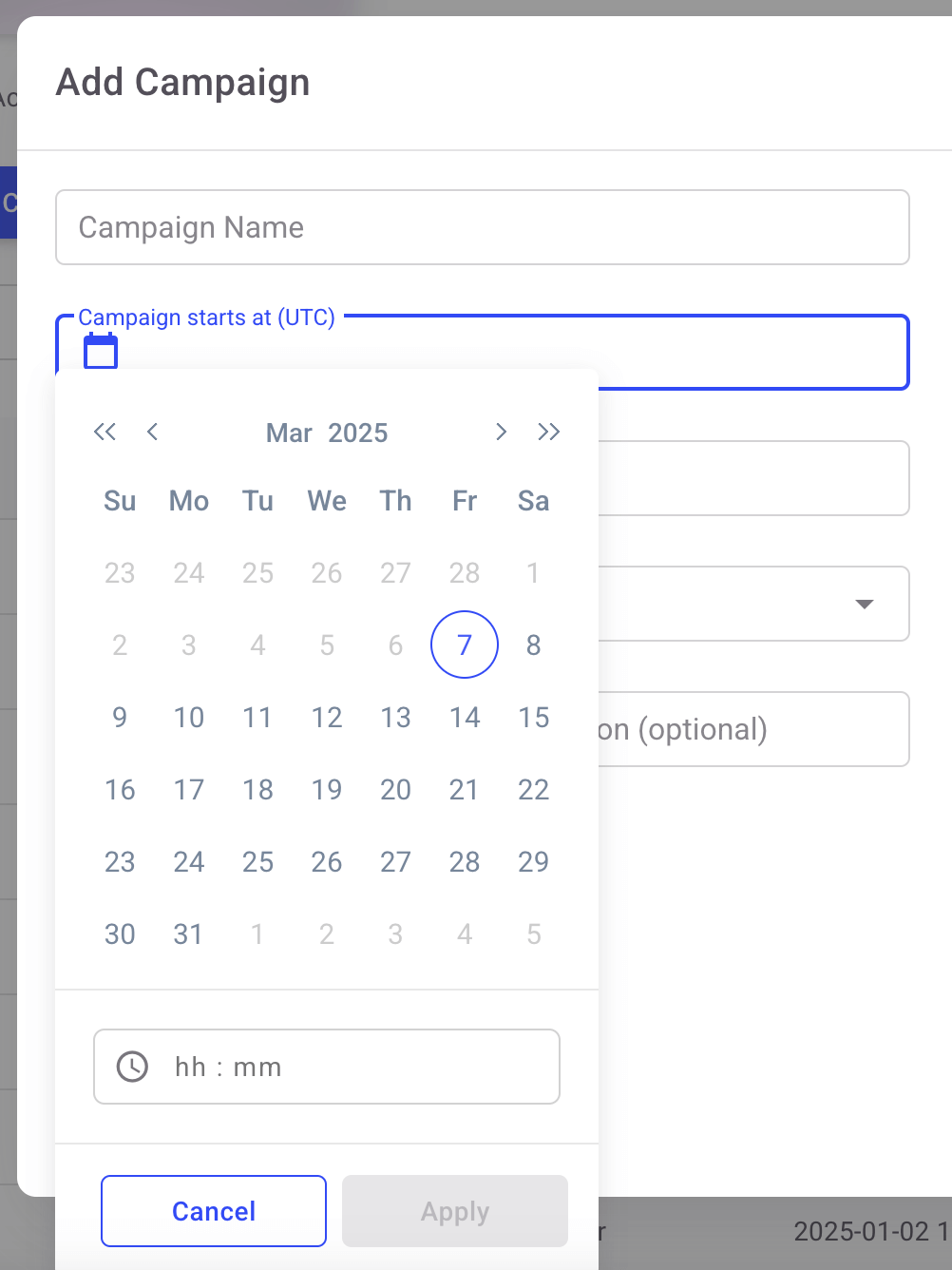
Then pick the start and end times using the calendar picker. The system uses five-minute increments and UTC.
Then, decide who controls when the campaign starts: you or the streamer.
.png)
In the former case, the campaign will begin based on the schedule you’ve set. In the latter, the streamer will start the campaign during the broadcast at their own discretion.
You can set the minimum number of registered viewers required for the campaign to start. This field is optional.

Now, it’s time to create the prize fund.
Navigate to the Prizes tab and press Add Prize.
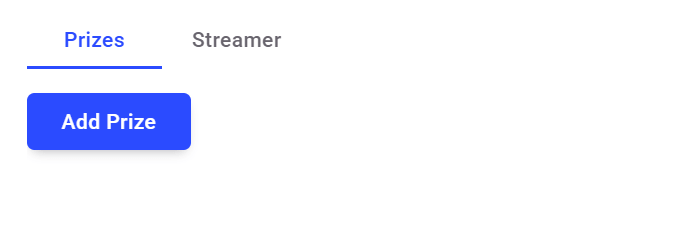
Then choose the prize type in the dropdown menu.
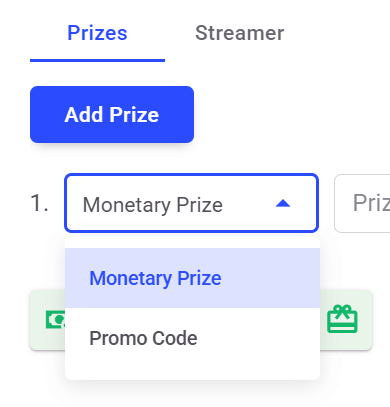
For a monetary prize, set a cash reward and enter the Prize Value in USD. You must implement the Reward endpoint to have the opportunity to give the monetary rewards to players.
Add a promo code and its monetary equivalent if you select this option. The promo code can contain lowercase and uppercase letters, special characters, and digits. Please note you need to specify Start at and Finish at timestamps for gifts.

You can duplicate and remove a prize by clicking on the corresponding icons to the right in the Add Campaign window.

You will see the breakdown of rewards and the total prize pool value at the bottom of the window.

Each campaign progresses through different statuses: pending, running, and finished.

Click the three-dot menu next to a finished campaign. Select Copy Campaign to create an identical one.Update the start and end dates and launch it as a new campaign.
The Gamification Center also features the Jackpot — a special prize for active participants of CopyStake streams.
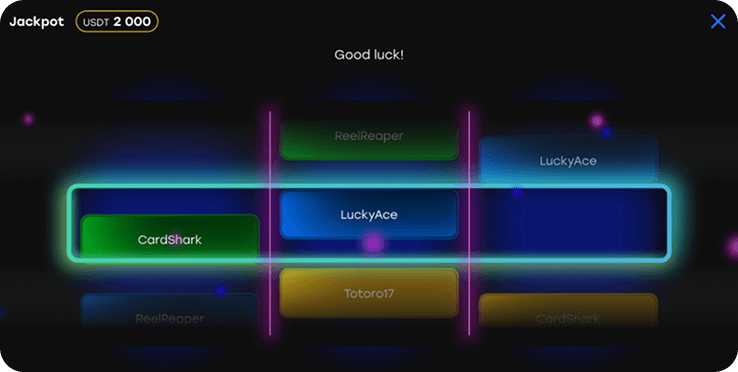
Like the previous gamification features, Jackpot is activated with a toggle.

To create a Jackpot campaign, you’ll need to take similar steps to managing the Wheel of Fortune.Start by clicking the Add Campaign button. In the window that opens, enter the campaign name and the start and end dates.
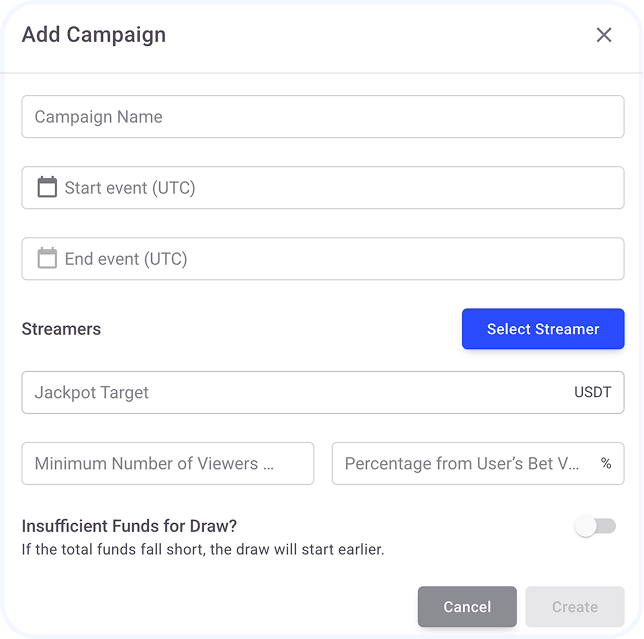
Then, choose the streamer to host the Jackpot event by pressing Add Streamer and check-marking them in the table.
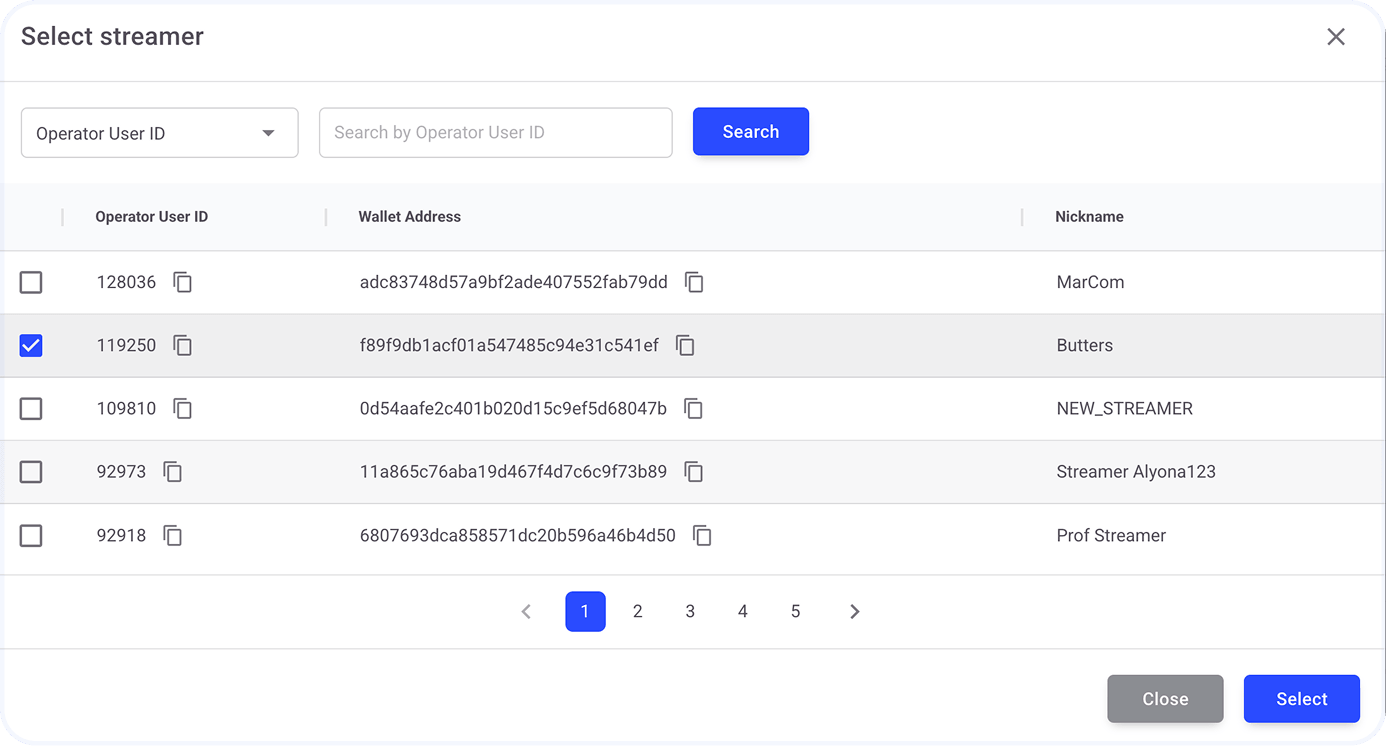
You can also streamline your search using a filter and the search field.
The streamer you’ve selected will appear in the Streamers section.
Set the total jackpot amount that needs to be reached for the draw to begin. This target is visualized as a jar.
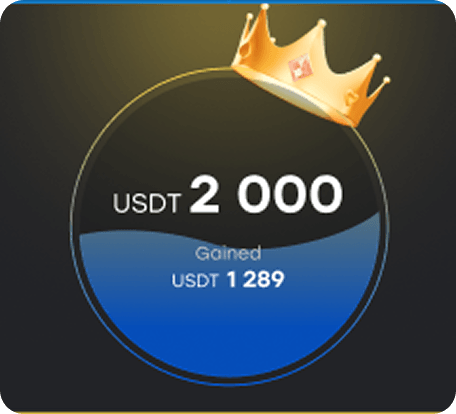
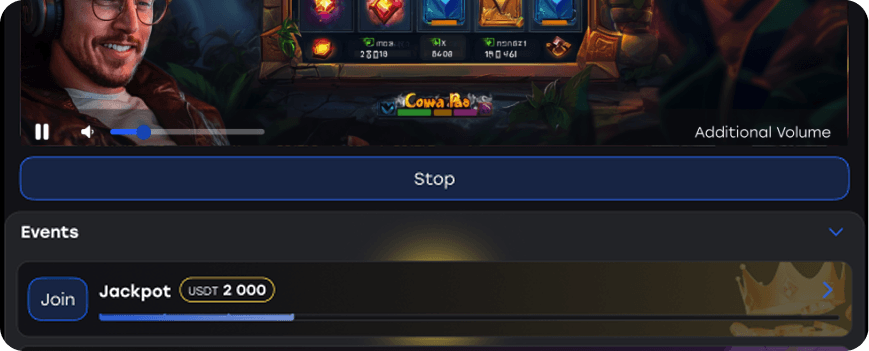
Users can also monitor how the jar is being filled in a progress bar below the video player.
Specify the minimum number of registered viewers needed for the campaign to start if you wish to implement this limit.
Next, you need to set the percentage of each copied bet that will go towards reaching the Jackpot target.
The mechanic is designed to encourage players to continue copying bets.By pressing this toggle button, you can enable a Jackpot draw before the target is reached.
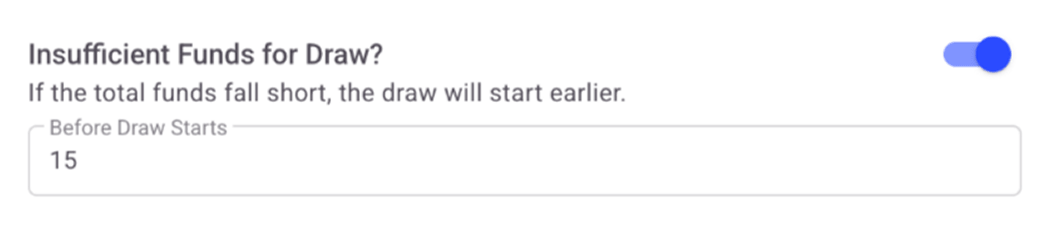
Specify how many minutes before the campaign’s end time the drawing must happen in the Before Draw Starts field.
Once you’ve filled in all the fields, click Create to launch the campaign.
You’ll find a list of active and completed campaigns with their details below the campaign creation panel.
Jackpot campaigns have the same statuses as Wheel of Fortune ones: pending, running, and finished. Only pending campaigns are editable.
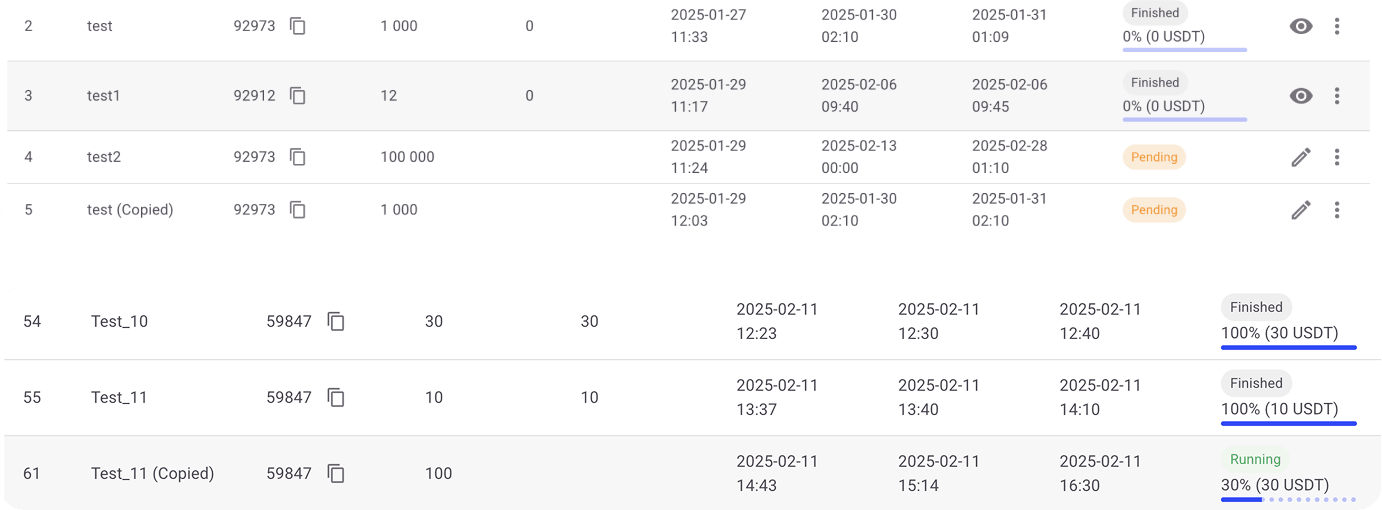
Copying campaign
Duplicating a finished campaign is also possible: you only need to copy it and update the scheduling details before relaunching.
Campaign sorting and filtering
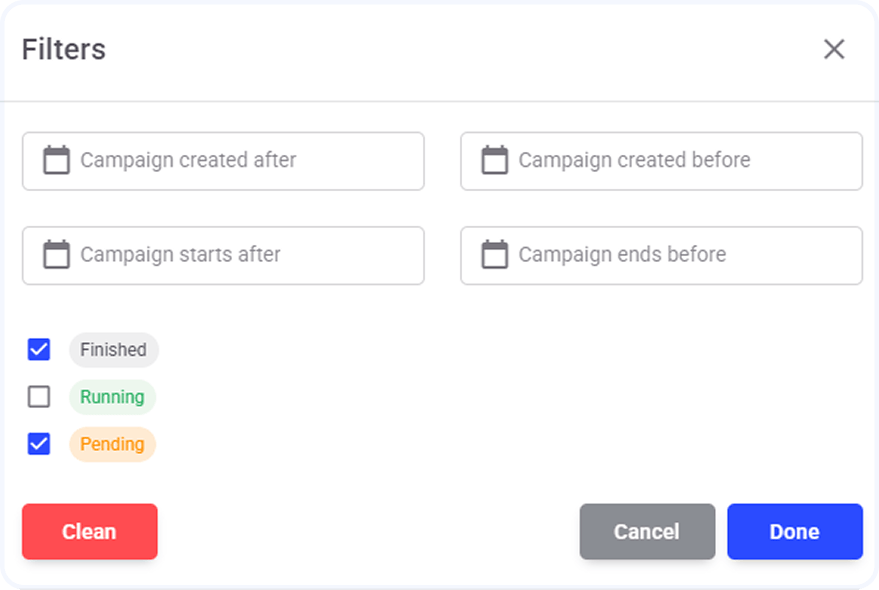
Easily manage multiple campaigns thanks to sorting and filtering options.
Sorting
Click on any column in the campaign list to sort by that field.
Filtering
Narrow down your search based on:
In addition to Wheel of Fortune and Jackpot, these features work as engagement boosters by tapping into human desires for competition, public recognition, and opinion sharing.
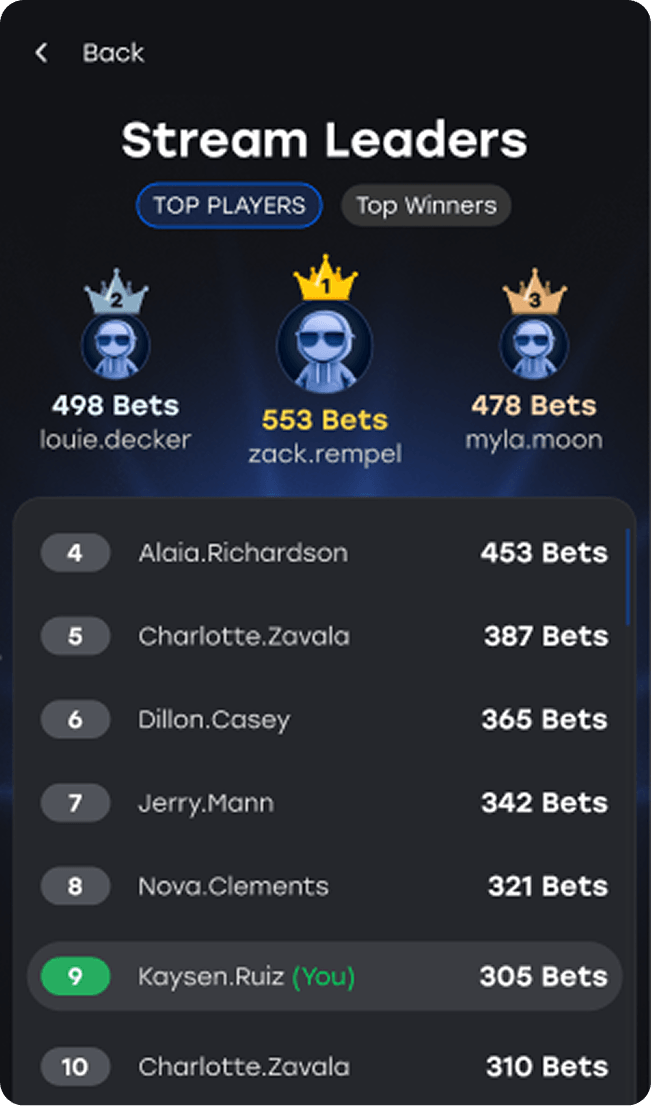
Each session, CopyStake records players’ bets and wins and shows these statistics in Top Winners and Top Players rankings.

Both leaderboards are located at the bottom of the broadcast page.
One can view a complete ranking in the Stream Leaders Dashboard by clicking or tapping on the Top Winners or Top Players sections.
Emoji reactions help to liven up gaming sessions by allowing viewers to quickly express their attitudes to what’s happening on the screen.
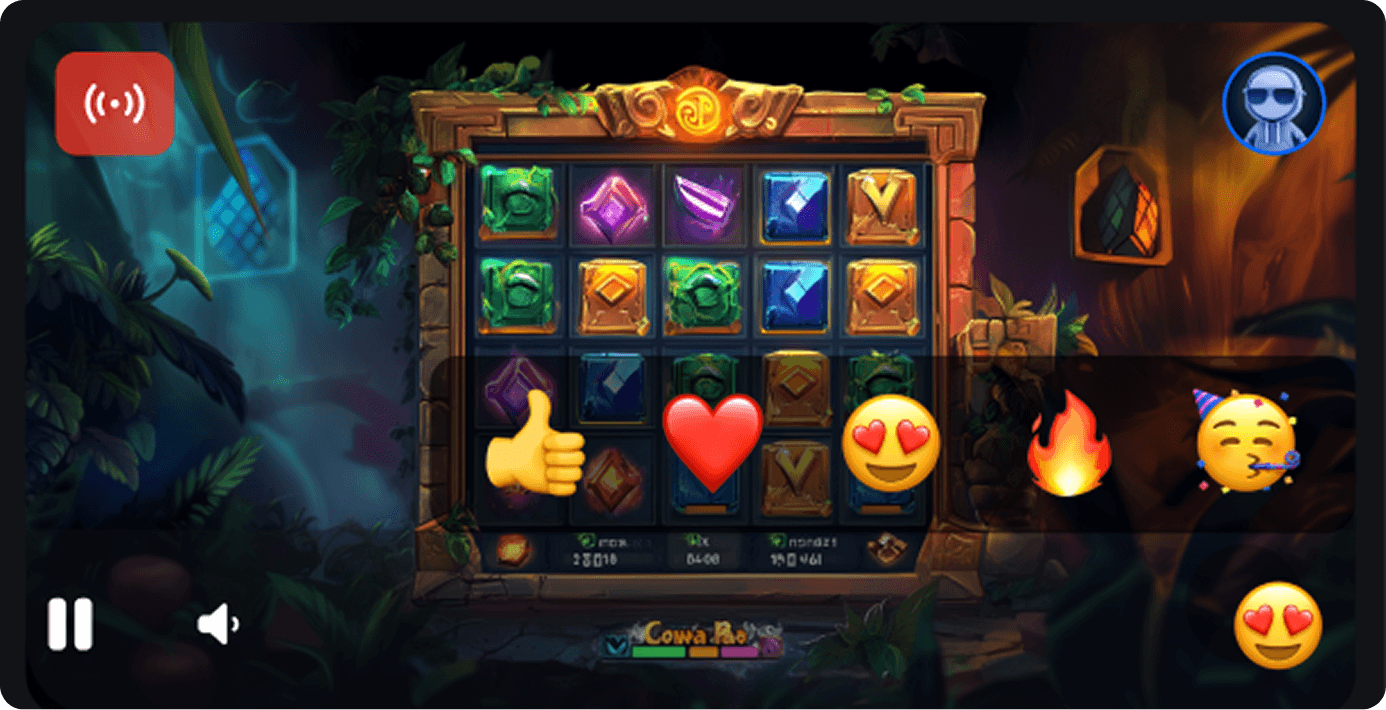
Additionally, stream hosts can encourage users to send emojis to react to highlights like big wins or funny moments or vote for the next game. Emojis are shown as floating animations on a video player.
Only registered players can send emoji reactions.
CopyStake has extended its functionality to cover more players’ needs and ambitions, giving operators a tool for enabling user-generated content.
The Become a Streamer feature gives regular players a chance to try themselves in a streamer’s role on an iGaming website. The feature helps increase the number and frequency of streams and session durations, keeping the CopyStake lobby active. Operators can encourage more players to copy bets and, therefore, grow revenue.
This feature also motivates players to spread content across channels, such as social media and streaming platforms, promoting the operator’s brand.
The Become a Streamer section is located in the CopyStake lobby.*
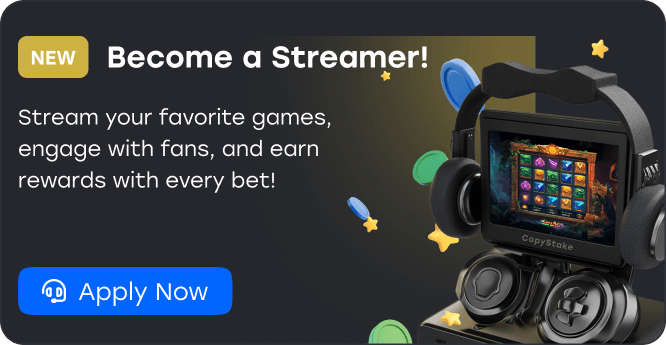
The user clicks Apply Now, reviews and agrees to the Terms and Conditions in a modal window, and sends a request using the Send a Request button.
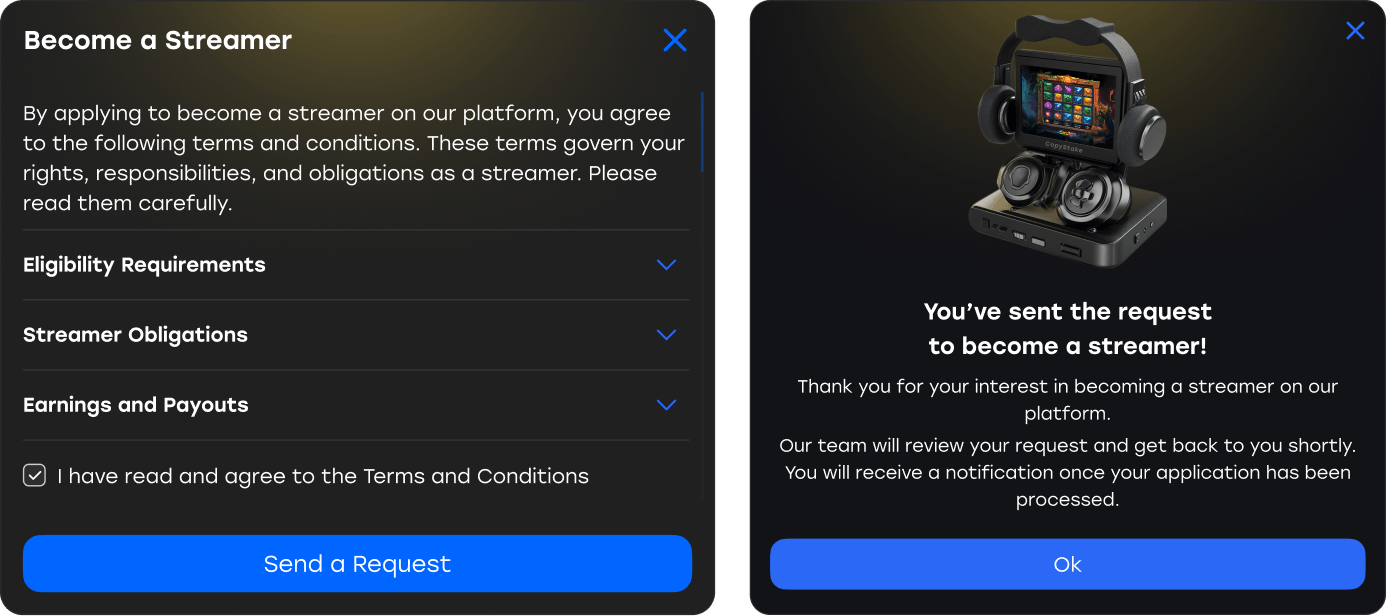
1. Operators can process the submitted requests to become a streamer on the casino website in the Admin Panel. Follow this path:
Become a Streamer page ➡️ CopyStake menu ➡️ Pending Streamers section
2. To review them, expand the section by clicking on the down arrow.
3. Once you make your decision, click the green checkmark to approve the request or the red cross to decline it. Users will see corresponding modal windows in CopyStake.
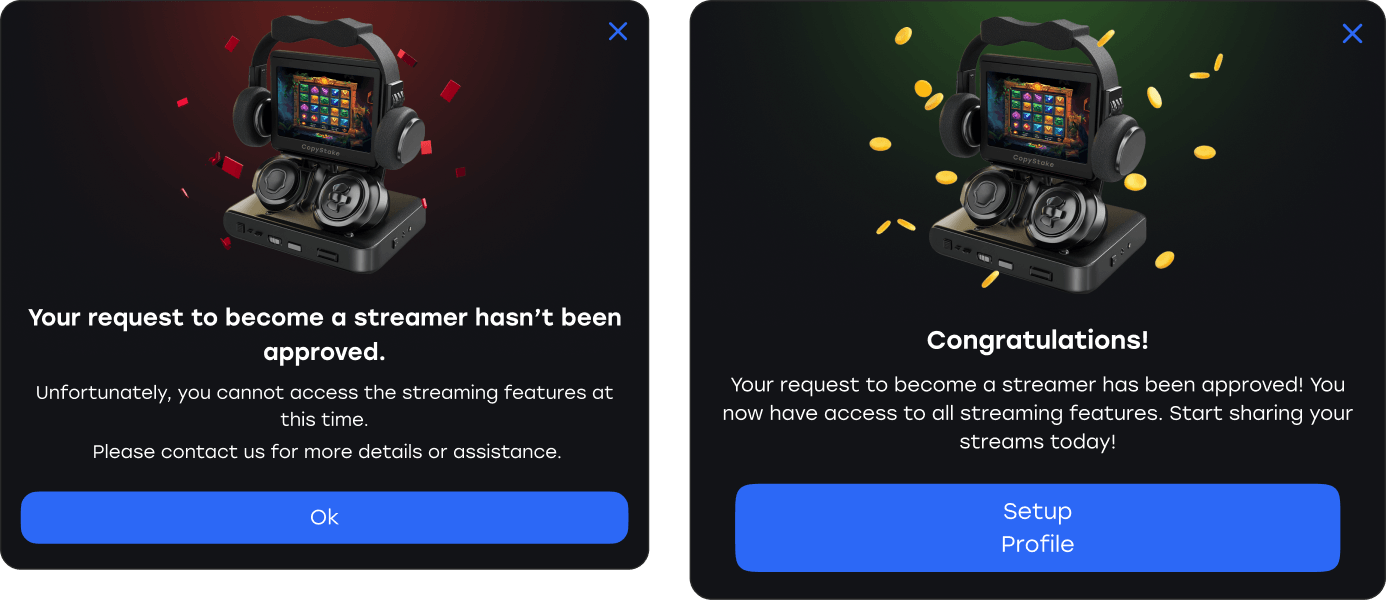
4. Customers whose requests you’ve approved can continue their journey, setting up profiles and specifying their nickname and the language they will stream in.
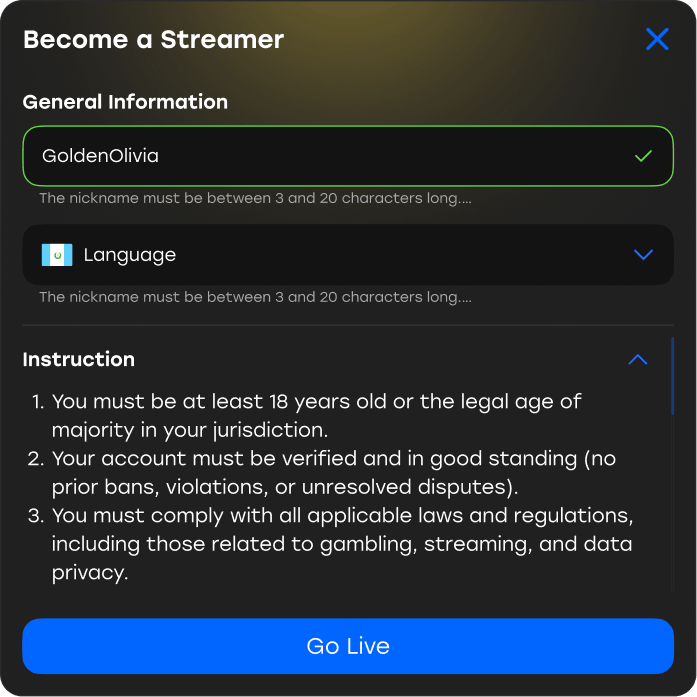
After clicking the Go Live button, users will proceed to the cockpit, where they will have to share their screen and turn on the microphone (mandatory) and the webcam (optional).
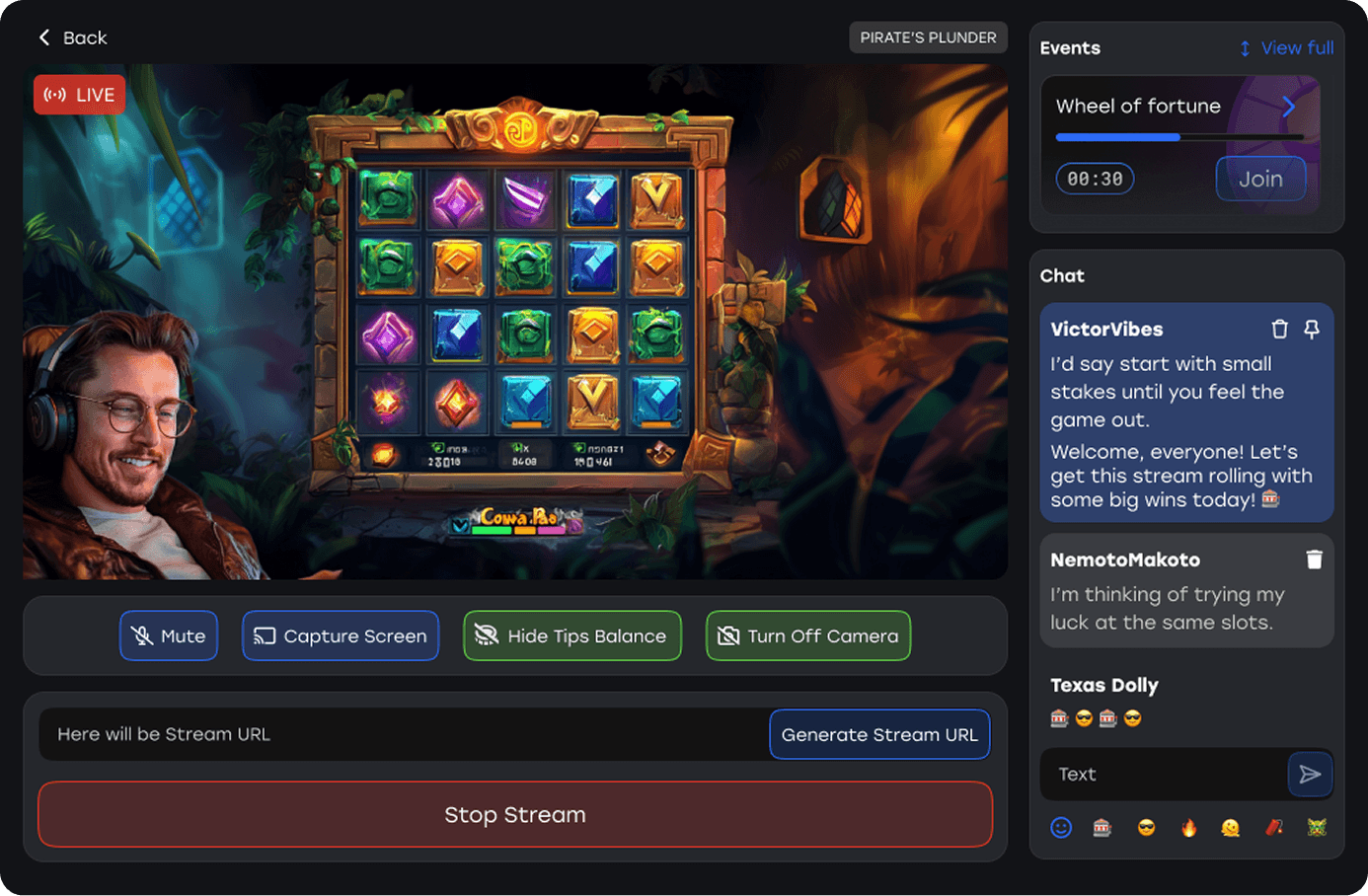
With all the steps completed, they can click Start Stream*. Other casino members will be able to join the session and copy bets.
Streamers can play any of the whitelisted games gathered in the same-titled section under the video player. To change a game during a broadcast, they need to find a game in the lobby and click on it.
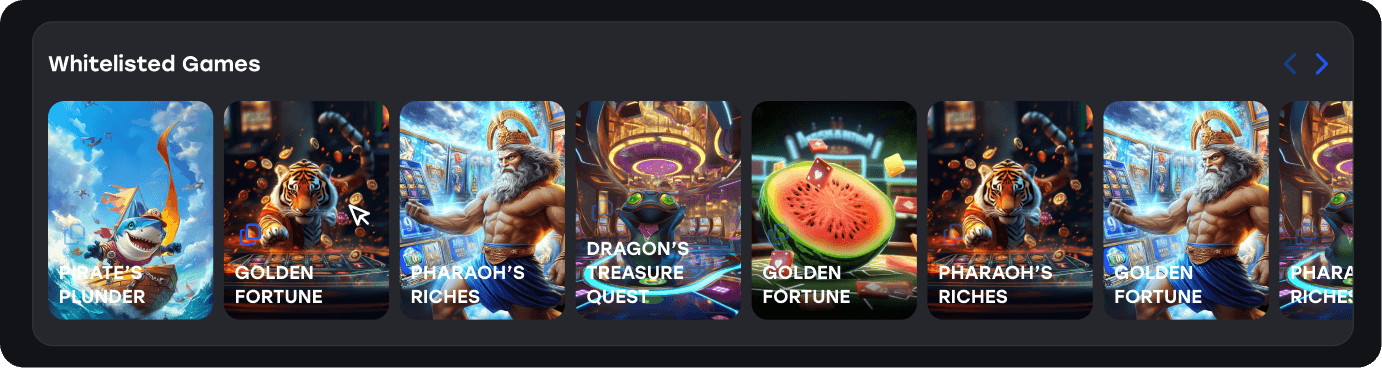
You can modify this list in the Admin Panel on the CopyStake ➡️ Games Whitelist page. To make the game appear in this section of the CopyStake lobby, search for it by name or code, checkmark it, then turn the toggle button on or click To TOP.

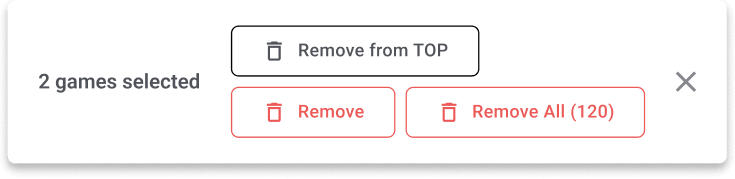
Alternatively, you can switch the toggle off and press the Remove from TOP button to delete the game from the listing.
Checkmarking several games is also possible.
Viewers can tip streamers during a broadcast.
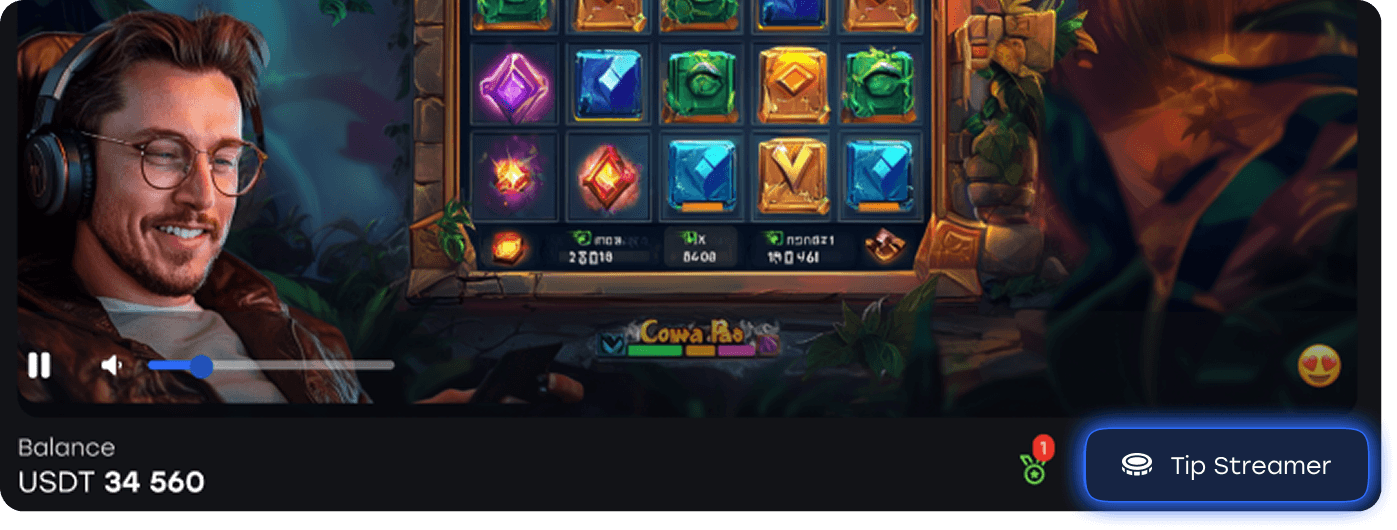
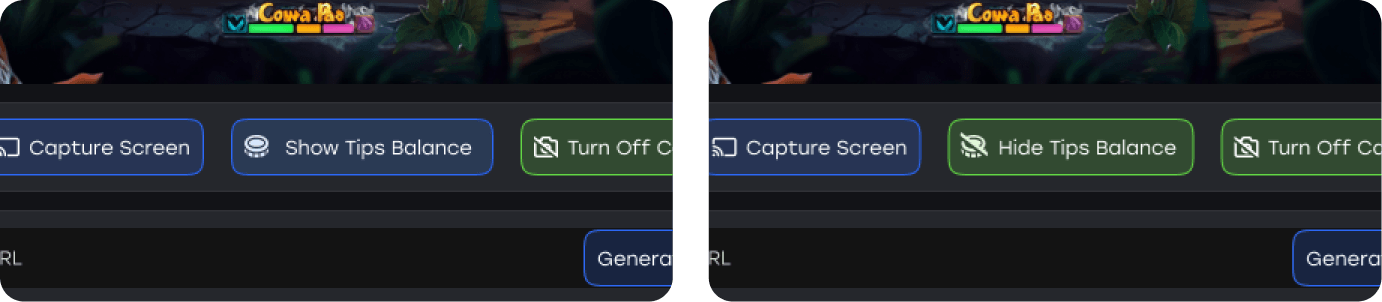
Streamers may make their tips visible by pressing the Show Tips Balance button below the video player or hidden by hitting Hide Tips Balance.
To turn on this feature, open the navigation bar in the top right corner. Then press Settings ➡️ Feature Management CopyStake, switch the toggle button on, and confirm the action.

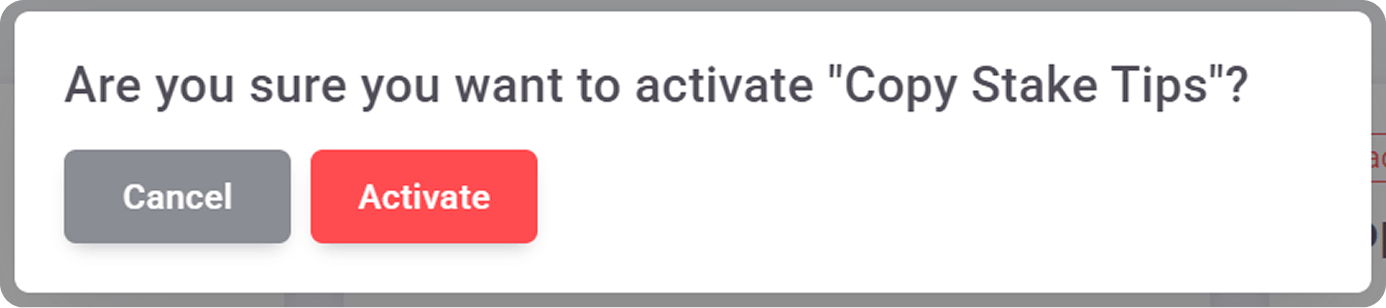
Feature deactivation implies the same sequence of steps.
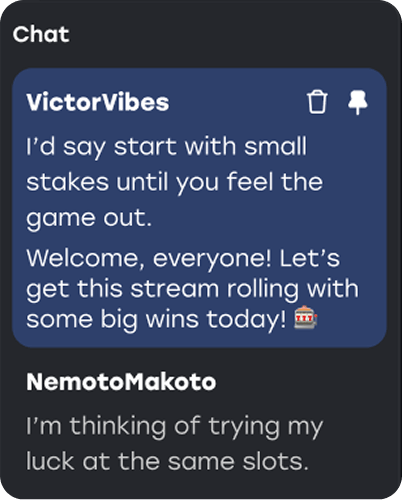
Streamers can pin their and viewer messages (up to 140 characters) if they wish to highlight that information during a session.
A host who’s live from a desktop needs to mouse over a message and click on the pin icon. To do the same action on a mobile device, one must tap the icon on a corresponding message.
When a streamer pins a new message, it replaces the previously pinned one.
By hitting Stop Stream, the streamer will end the broadcast.

In the table below, the Pending Streamers section displays basic information about your broadcast hosts. Here, you’ll find the date a streamer was added to the platform, their wallet address, operator user ID, and channel ID. Additionally, you can track stats on how many streamers are live and how many players are watching them.
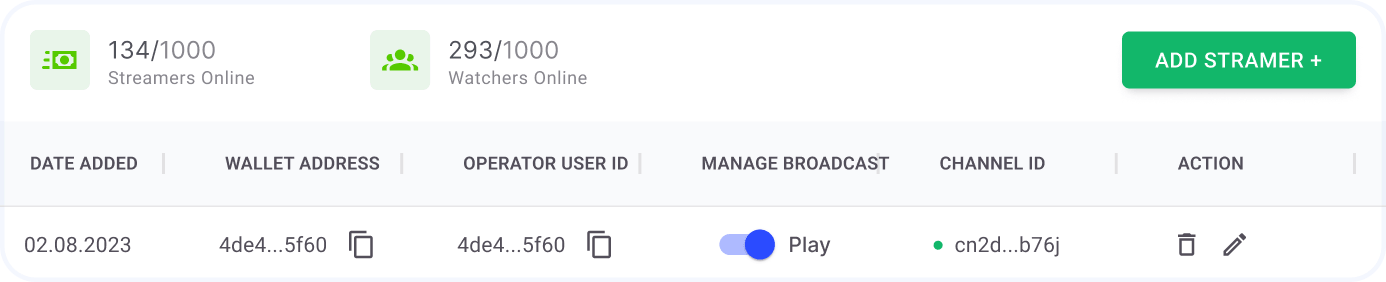
By turning the Manage Broadcast toggle off, you will stop an ongoing stream and prohibit a streamer from starting a new one. This lets you act swiftly in case a broadcaster breaks the Terms and Conditions.
Click the pencil icon:
Pressing the trash can icon will remove the streamer from your platform.
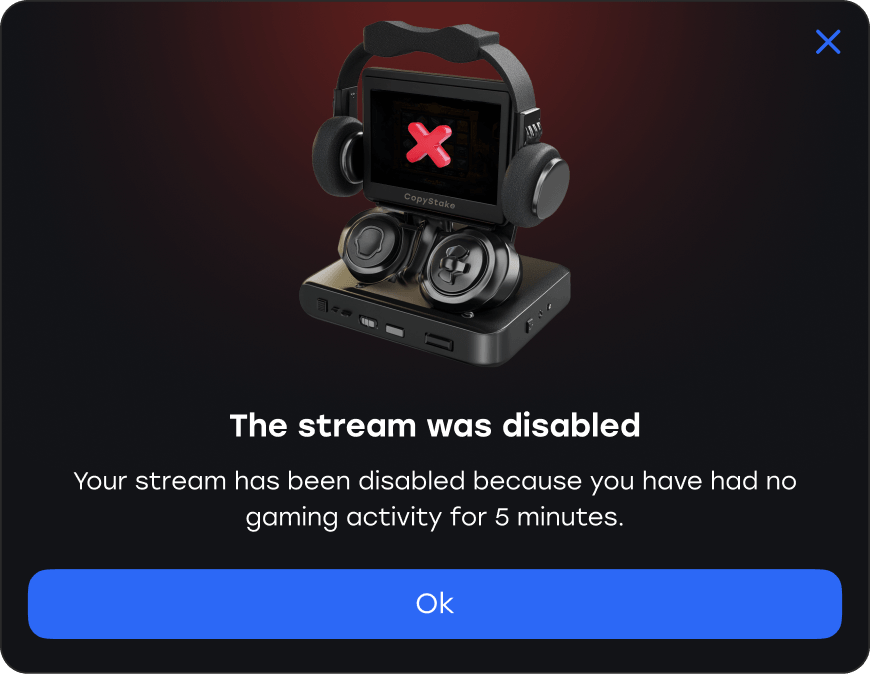
Here, you can specify in how many minutes the broadcast will end if a streamer no longer plays a game.

The streamer will receive a notification.
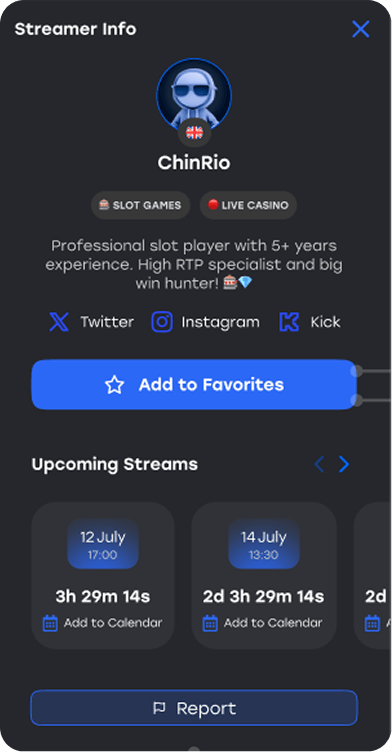
Players can access essential information about each streamer on a dedicated page. It contains the following information:
To provide these details, open the Streamers tab in the CopyStake menu of the admin panel, press the Add Streamer+ button, and fill in the form that will appear. If you need to update the information about a streamer you’re currently working with, press the edit icon in the right corner of their row. The Edit Streamer form will open.
Buttons for adding entertainers to favorites* and reporting them are also located on the page.
We hope this guide will help you smoothly set up CopyStake and use it to your benefit. You’re one step closer to disrupting the iGaming space!


.svg)